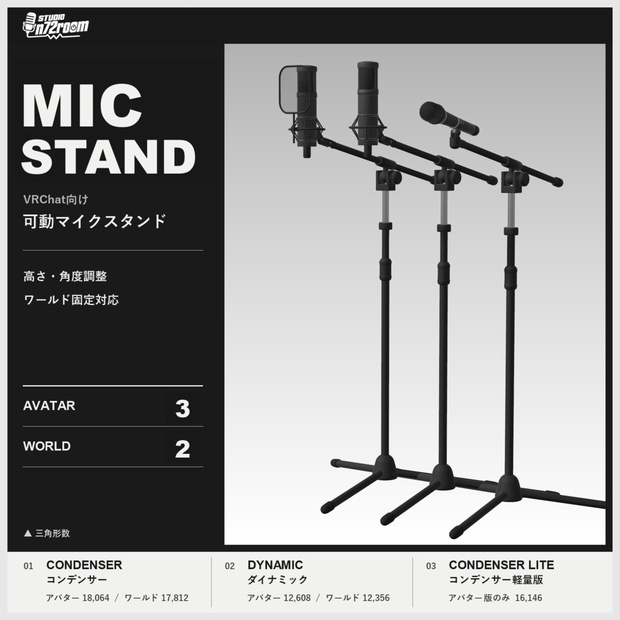
A microphone stand for VRChat. Use the Expression Menu to place and adjust the Avatar Edition, or pick up and move the World Edition by its stand.
Before you buy
| Edition | Included prefabs | Main controls |
|---|---|---|
| Avatar | Dynamic, condenser, and lightweight condenser without a pop filter | Expression Menu and world lock |
| World | Dynamic and condenser | Pickup, floor placement, adjustment panel, and optional lock |
The Avatar Edition uses VRChat SDK - Avatars and Modular Avatar. The World Edition uses VRChat SDK - Worlds and UdonSharp. World installation was verified with Unity 2022.3.22f1 and VRChat SDK - Worlds 3.10.5.
Model specifications
| Model | Avatar Edition | World Edition |
|---|---|---|
| Dynamic | 12,608 | 12,356 |
| Condenser | 18,064 | 17,812 |
| Lightweight condenser (without pop filter) | 16,146 | Not included |
Counts are triangles in the FBX files included in V1.0. The World Edition adjustment panel and selection outline are excluded.
Avatar setup
- Open your avatar project in Unity with Modular Avatar installed.
- Import the Avatar Edition unitypackage. Choose a prefab from
Assets/n72room/マイクスタンド/01_Prefabs. - Place the prefab directly under your avatar in the Hierarchy. Use the settings on the prefab root to configure visibility and initial values.
Setup and controls
- Enable the edit preview to see the stand and adjust its initial pose in Unity.
- Turn on in-game adjustment for each control you want in the Expression Menu. Turning it off fixes the control at its initial value and removes its menu entry and synced parameter.
- In VRChat, show the stand from the Expression Menu. Adjust its position, orientation, height, and angles as needed, then enable world lock to keep it in place.
Synced parameter usage examples
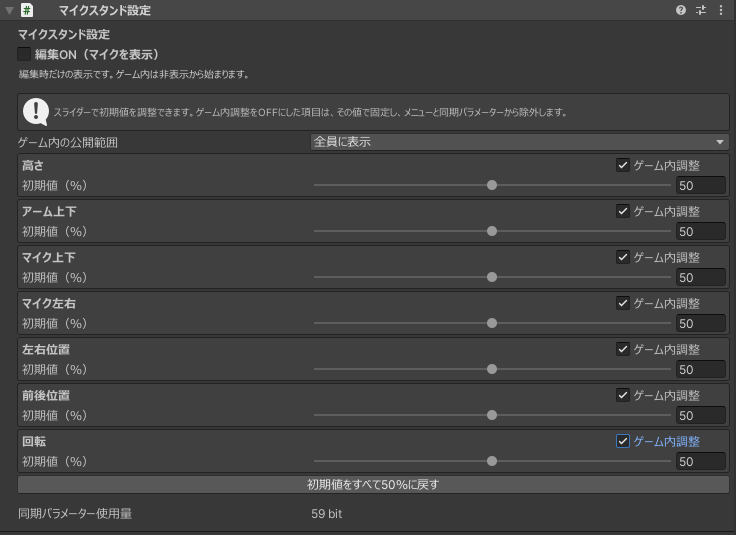
These values show the synced parameter usage of one microphone stand with the settings shown.
Visible to everyone, all in-game controls enabled — 59 bits
Adjust placement, orientation, height, and angles in VRChat.
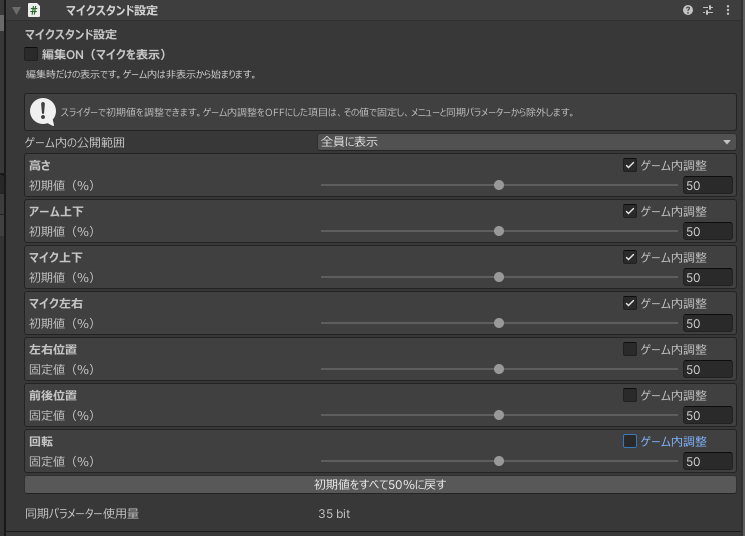
Visible to everyone, three placement controls disabled — 35 bits
If you can set placement and orientation in Unity, turn off in-game adjustment for left/right position, forward/back position, and rotation. Height, boom angle, and microphone angles remain adjustable in VRChat.
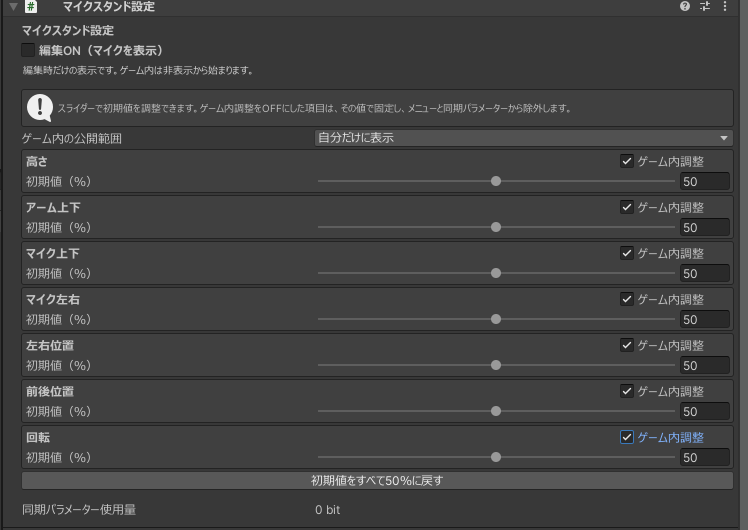
Visible only to you — 0 bits
Use this setting for personal recordings or screenshots. The stand uses 0 synced bits even with all in-game controls enabled, as shown here.
World setup
- Import the World Edition unitypackage into your world project.
- Add a prefab from
Assets/n72room/マイクスタンド/01_Prefabsto the scene. Set its starting position and orientation on the root Transform. - Set the placement floor layers on the prefab root to match the floor Collider's Layer. If the floor is on
Default, the initial setting already matches. To allow only specific floors, clear the layer selection and assign their Colliders directly.
Moving and adjusting the stand
Grab the middle of the vertical pole, move the stand, and release it where you want to place it. The adjustment panel that appears after placement controls height, boom tilt, microphone tilt, and microphone swivel.
Optional lock
- Enable the lock feature on the prefab root.
- Choose whether the stand starts unlocked or locked.
- Assign a scene UI Button or the root of a LuraSwitch2
Switch_Collider. You can assign the same switch to multiple stands.

World Edition root Inspector before assignment. The lock toggle switch field shows None.
LuraSwitch2 is an optional separate download. Use a switch dedicated to the microphone lock. LuraSwitch2 download
Checking your setup
For avatars, verify that the Expression Menu can show, adjust, and world-lock the stand. For worlds, check pickup, floor placement, adjustments, and locking. Unity Play Mode is suitable for basic checks. In VRChat, you can also check that other players see the stand move and adjust.
FAQ
The stand does not settle on the floor
Check that the floor Collider's Layer is included in the placement layer selection.
I cannot pick up the stand
Aim at the middle of the vertical pole. If the stand starts locked, unlock it with the assigned switch.
One switch locks one stand and unlocks the other
Each stand toggles from its current state. Give both stands the same initial state if you want them to switch together.
Updates
- V1.0 Initial release.